 UNVELL
How to Display Large-Scale Data at Lightning Speed with ReoGrid

ReoGrid is a spreadsheet component for .NET applications. With no dependency on Excel itself, a single DLL gives your application Excel-equivalent capabilities.
In this article, we introduce how to load and display large-scale data — on the order of hundreds of thousands of rows — at lightning speed using ReoGrid.
Video demo 👉 https://youtu.be/PospG1jddFw
Why It's So Fast
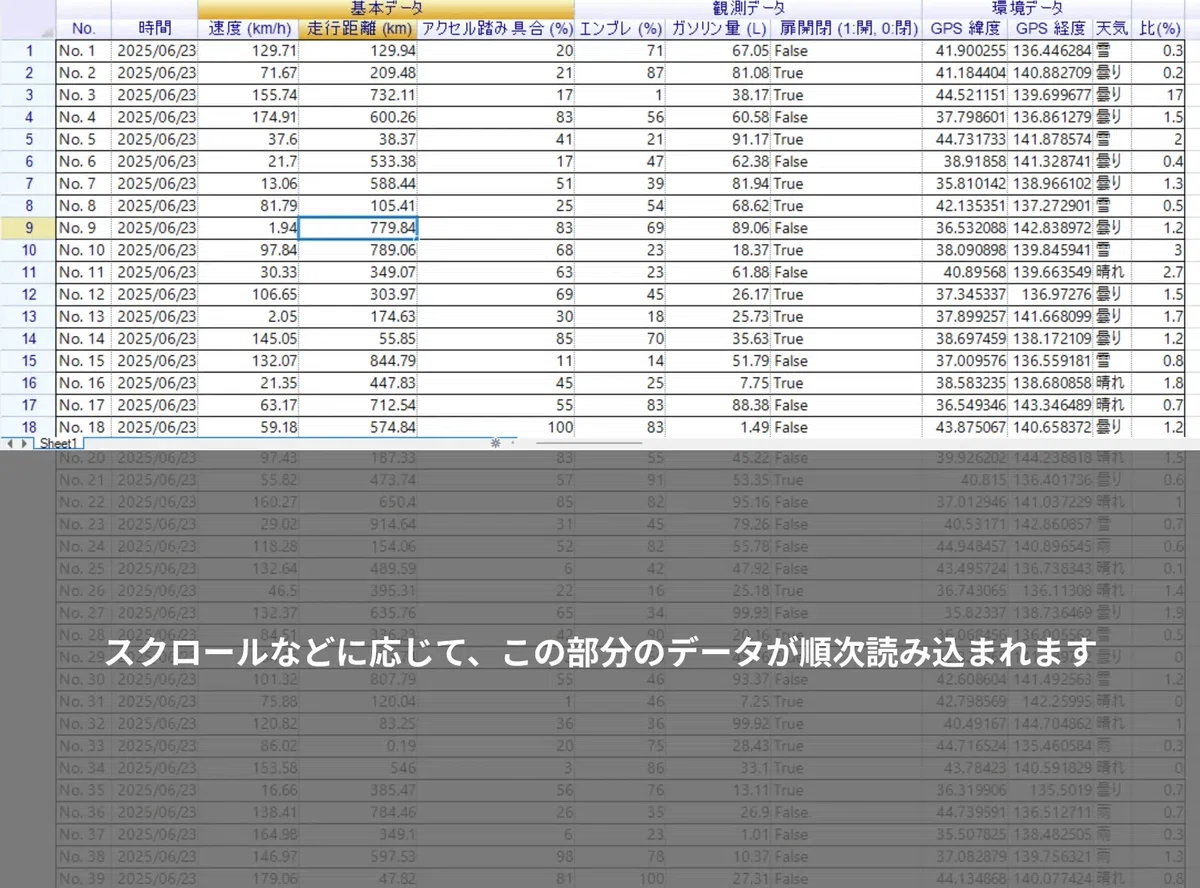
ReoGrid version 4 introduces a new technology called Lazy Loading.
Lazy loading doesn't pull all the data in at once. It loads only the minimum necessary slices, on demand.
Conventional approaches load every row up front, which means high memory pressure and slow time-to-display. Lazy loading instead reads only what's actually needed at the moment, making the initial render dramatically faster.
Other grid components offer similar techniques such as virtual mode, but they typically require the developer to implement and manage that control themselves.
ReoGrid, by contrast, smartly manages internally when each cell should be loaded. As you scroll, zoom, or change the worksheet's visible area, ReoGrid automatically loads the cells it needs.
It also handles cells referenced by formulas and cells consumed by your application — managing every access pattern and triggering the load when required.
This sophisticated approach is what lets ReoGrid 4 handle very large datasets without lag and render them at high speed.
The Implementation Is Surprisingly Simple
As above, ReoGrid 4 manages cell state automatically — your application just needs to prepare the data.
First, implement ReoGrid's data-loading interface, DataSource, and pass your own data through it to ReoGrid.
private void button1_Click(object sender, EventArgs e)
{
    // Set the worksheet row count
    worksheet.SetRows(logs.Count);

    // Configure the data source in lazy-loading mode
    worksheet.AddDataSource(
        new RangePosition(0, 0, logs.Count, COLUMN_COUNT),
        new FlightLogDataSource(logs),
        // Enable lazy loading
        DataSourceLoadMode.LazyLoading);
}
That's it — simply specify the data source's load mode as lazy loading (DataSourceLoadMode.LazyLoading).
Borders, Cell Formatting, and Cell Styles Are Supported Too
You can apply borders and cell formatting from inside the DataSource interface as well, not just data values. This makes worksheet initialization even faster and gives your app a smoother experience.
The sample below shows how to set borders for every cell.
public class FlightLogDataSource : IDataSource<FlightlogDataRecord>
{
    ...

    // Modify the GetRecord method as follows
    public FlightlogDataRecord GetRecord(int row)
    {
        FlightlogDataRecord record = initedRecords[row];

        if (record == null)
        {
          record = new FlightlogDataRecord(this, row, Logs[row]);
          initedRecords[row] = record;

          // Apply row borders the first time the row is accessed
          Worksheet.SetRangeBorders(row, 0, 1, ColumnCount, BorderPositions.Outside, RangeBorderStyle.BlackSolid);
          Worksheet.SetRangeBorders(row, 0, 1, ColumnCount, BorderPositions.InsideVertical, RangeBorderStyle.GrayDotted);
        }

        // Return the row data
        return record;
    }

    ...
}
Learn More
The official ReoGrid site has more in-depth documentation and sample code. See the documentation page for details.
About ReoGrid Version 4
ReoGrid has been adopted in many systems by companies in Japan and around the world — particularly in financial systems, manufacturing, and public infrastructure where large datasets are part of daily operations.
Version 4 builds on the experience gained from those deployments and on direct user feedback, delivering significant improvements in both performance and functionality.
Since the release of ReoGrid 4, multiple companies have already adopted it and given strong feedback on its speed, stability, and usability.
We will continue pushing performance higher and providing reliable support for our users.
▼ ReoGrid — details and purchase